Internal Apps
As a Scout Group we have a number of Apps to help us carry out tasks easily and quickly. Some of these are Accident Reporting, Maintenance Task, Purchase Request and Waiting List. These are run through an application called PowerApps which is part of Office 365. PowerApps can be installed on an iPhone, iPad, Windows Phone, or Android device.
To start please search and download “PowerApps” from your app store and follow the instructions below to use.
Sign in to PowerApps
The first time you open PowerApps, you are prompted to sign in using your Office 365 credentials:

This will need to be your @burnhamonseascouts.org.uk email address.
App filters and sorting options
Quickly find an app by searching one of these categories:
- All: All apps to which you have access, including apps that others shared with you.
- My Apps: Apps that you have run at least once.
- Samples: Sample apps that Microsoft provided to showcase real application scenarios with fictitious data and to help you explore design possibilities.
- Favorites: Apps that you’ve marked by using the “…” option of each app. You can unmark an app to remove it from this list.

After you choose a list, you can also sort it by the dates on which apps were most recently opened or modified. These preferences are retained when you close and reopen PowerApps.
Open an app
To open an app on a tablet or a phone, tap the app icon, or tap the push notification that appears when someone shares an app with you.
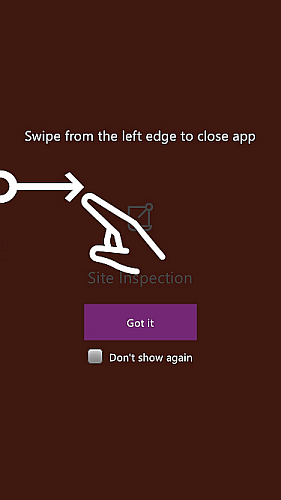
If this is the first time you are using PowerApps, a screen shows the swipe gesture to exit PowerApps.
Give consent
If an app requires a connection to a data source or requires consent to use the device’s capabilities, you must confirm the connection or give consent before you use the app:

Typically, you are prompted only the first time.
Exit the app
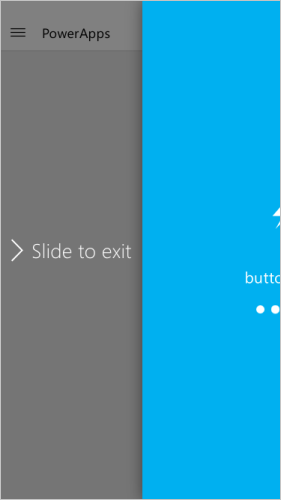
- On an Android phone, slide to the right (or press the back button and then confirm that you intended to exit the app).
- On an iPhone, slide to the right.
- On Windows 10 Mobile, press the back button.